
How to Book Online | Mounjaro Tokyo
Almona Clinic · Tokyo
English
Mounjaro · booking guideHow to book online
Easy booking in 3 minutes.-Fully available in English!
You don’t need any Japanese to complete your booking. Just switch the language first, as shown in Step 1 below.
Book online nowBack to Mounjaro prices & details
01
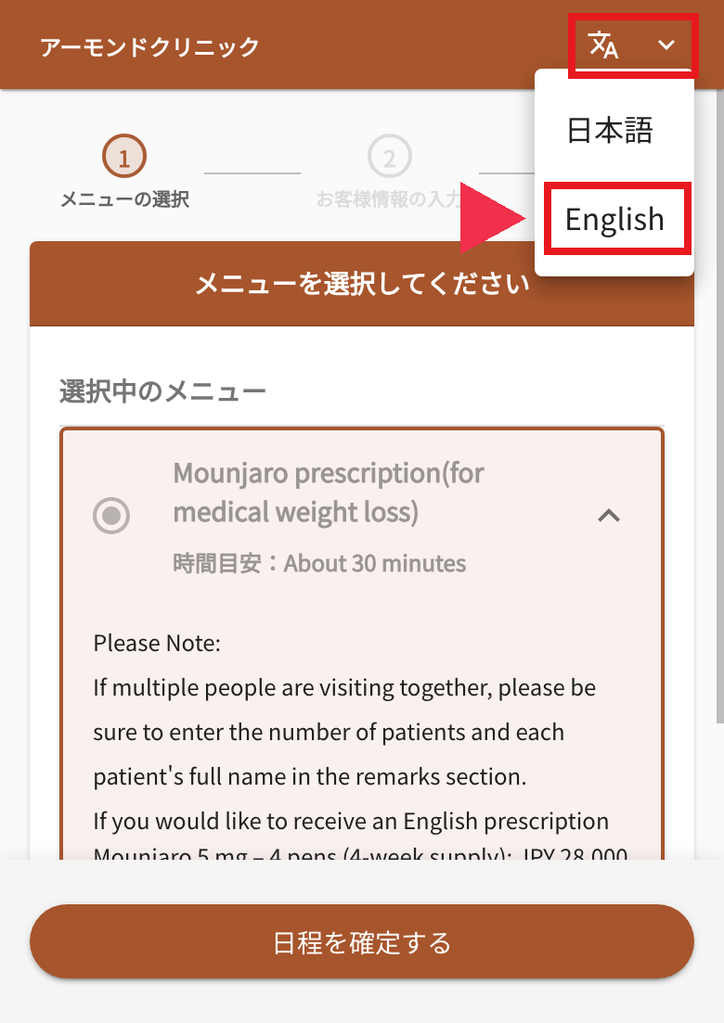
Step 1: Open the booking page and switch to English
Tap the “Book Online Now” button on this page.
The booking system will open in Japanese.
Tap the Translate icon [ 文A ] in the top-right corner and select English.
💡 Note: If you refresh or reload the page, the language will reset to Japanese. Just repeat Step 1 to switch it back.
02
Step 2: Select Treatment & Check Prices
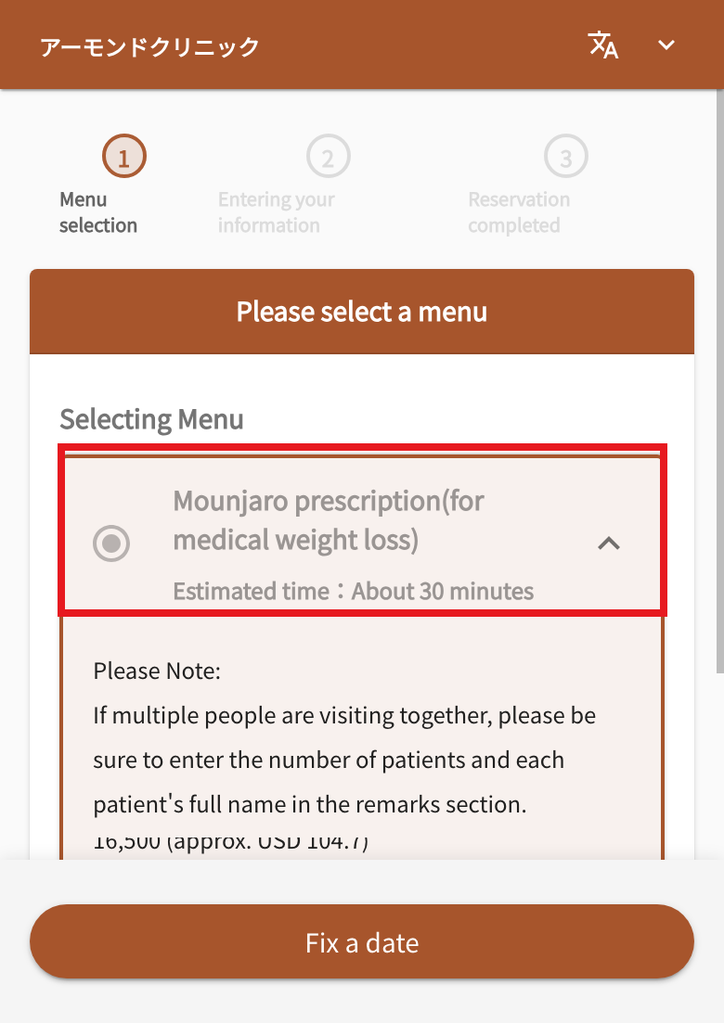
Confirm that “Mounjaro prescription (for medical weight loss)” is selected (tap the radio button if it isn’t).
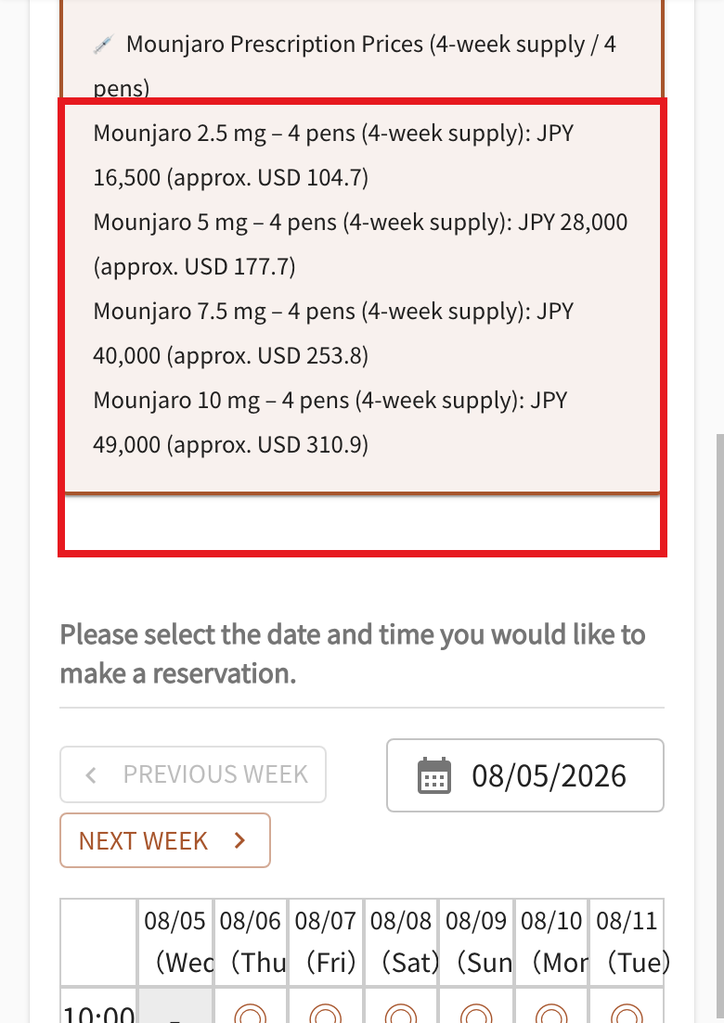
Tap the treatment name to view dose options, pricing (JPY & USD equivalent), and required items.
💡 Group Bookings & English Certificates: If visiting with friends/family or if you need an English Prescription Certificate, you can write a request in the Remarks Box in Step 5.
03
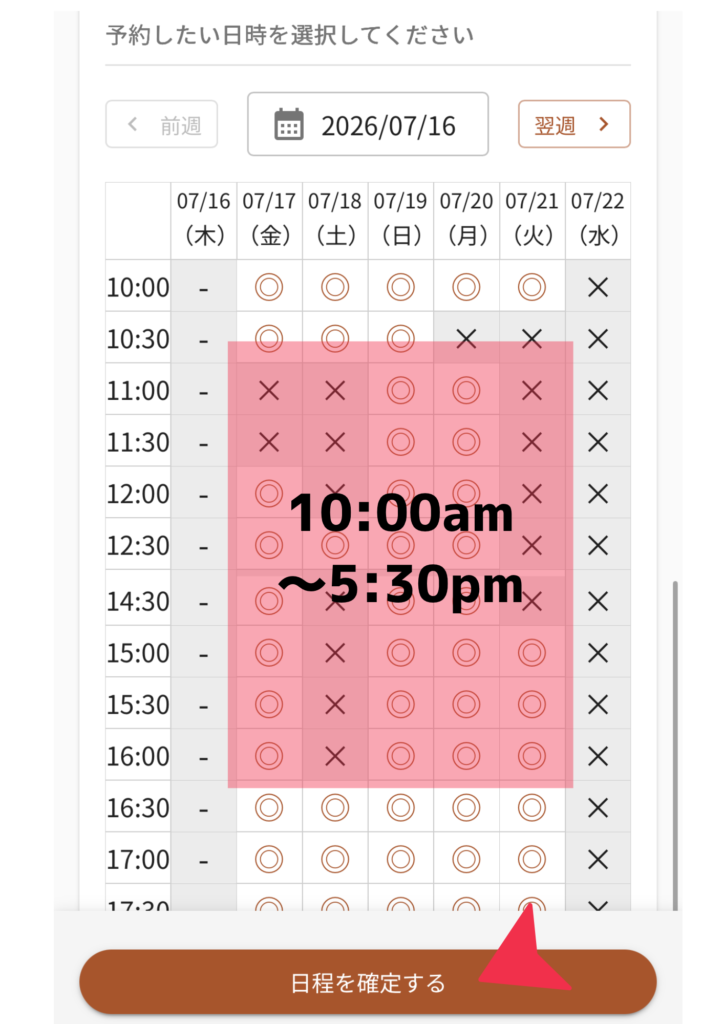
Step 3: Choose your date and time
Scroll down to the calendar (Available slots: 10:00 – 17:30).
Check the symbols:
- [ ◎ ] Available (Tap to select)
- [ ✕ ] Fully Booked
- [ − ] Unavailable
Tap an available [ ◎ ] slot and tap [ Fix a date ] at the bottom.
04
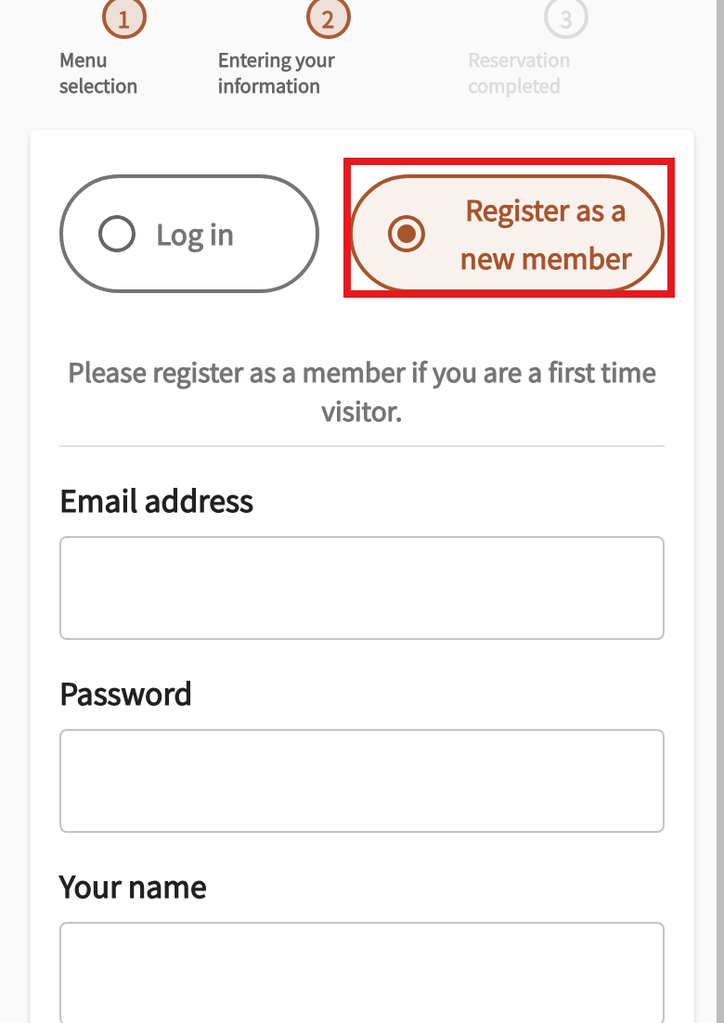
Step 4: Register or Log In
・First-time patients: Select [ Register as a new member ] and fill in:
Email Address: Confirmation email will be sent here.
Password: Create a password for your account.
Name: In English, exactly as shown on your passport.
Date of Birth: Format as MM/DD/YYYY (e.g., 02/12/1994 for Dec 2, 1994).
・Returning patients: Simply select [ Log in ].
05
Step 5: Enter Personal Details
Review your details and complete the remaining fields:
Pronunciation (Hiragana): ⚠️ Leave this blank (for Japanese residents only).
Phone Number: Overseas numbers are accepted. Include your country code (e.g., +1… or +65…).
Note/Remarks: Add special requests here (e.g., group names, English prescription certificate).
Check the agreement box and tap [ Confirm your input ].
06
Step 6: Review & Complete Reservation
Double-check your booking details and personal information.
Check “I have confirmed and agreed to the privacy policy…”
Tap [ Confirm your reservation ].
🎉 All set! Once you see “Thank you for your reservation!”, your appointment is booked.
✉️ Check your email for the confirmation (sent in Japanese). If you don’t see it, please check your Spam/Junk folder.
Book online now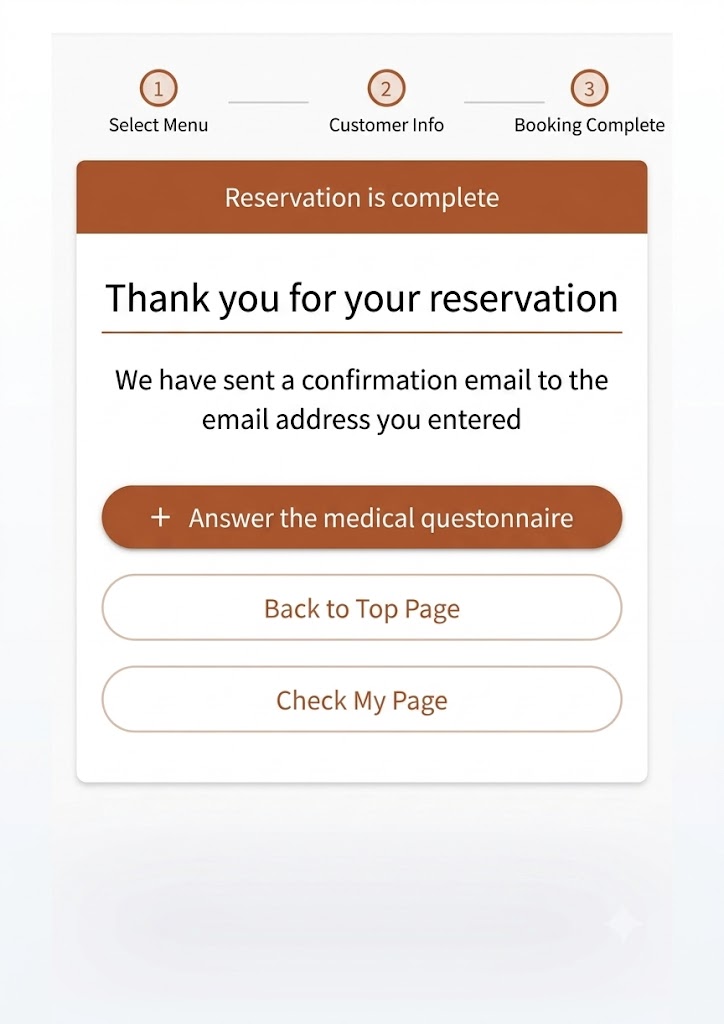
Before you book
Before you book — a few important points
- Please arrive on time: We operate on an appointment only basis. Please arrive at your scheduled time.
- Cancellations or changes: Please notify us via our official LINE account or WhatsApp account (ID:@almondclinic)as early as possible if you need to cancel, reschedule, or if you are running late.
- Late arrivals: You may experience a longer wait, or we may not be able to accommodate you on the same day. Thank you for your understanding.
- No-shows: If you miss an appointment without prior notice, we may decline future booking.